← Index Markdown Handout Builder Download official PDF

Markdown Handout Builder

Usage Guide and Package Showcase

Tangxy97

2026.07.06

v2.0

Why Markdown Handout Builder

Markdown Handout Builder is a command-line tool for course handouts, internal tutorials, and long-form technical notes. It renders a group of plain Markdown files into an HTML reading version, then prints the same HTML through Playwright Chromium to produce the official PDF.

The core goals are simple:

  • Keep the content repository small: book.yml, notes/, and optional local customization files.
  • Let authors keep writing plain Markdown, without depending on Obsidian plugin syntax.
  • Generate HTML and PDF from one rendering source.
  • Let GitHub Actions publish a showcase to GitHub Pages and upload build artifacts.

This document is the showcase. It uses Markdown, math, footnotes, tables, image captions, multiple themes, and PDF table-of-contents page numbers generated by this package.
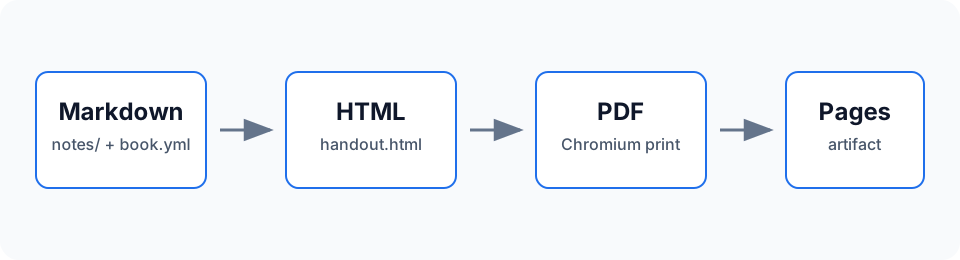
Markdown to PDF pipeline
Figure 1: Markdown Handout Builder pipeline

Build Model

A handout has three practical inputs:

File or directory Role Required in a note repo
book.yml Metadata, chapter order, output paths, theme config Yes
notes/ Markdown chapters and local assets Yes
templates/ Custom CSS, cover fragments, back-cover fragments Optional
scripts/ Build, validation, and PDF rendering scripts No, provided by npm

The pipeline can be described as:

handout.pdf=print(render(book.yml,notes))\text{handout.pdf} = \operatorname{print}(\operatorname{render}(\text{book.yml}, \text{notes}))

render converts Markdown into HTML. print handles browser printing and PDF post-processing.

When to Use It

This package is a good fit for:

  1. Course handouts and revision notes.
  2. Team operations manuals.
  3. Product or engineering documents that need both web and PDF output.
  4. Small knowledge bases that should publish to GitHub Pages without a full static-site framework.

If you need routing, search indexing, interactive components, or a blog engine, use a documentation-site framework. If you need a set of Markdown files to become one printable handout, this package stays deliberately narrow.

Quickstart

This chapter shows how to use the npm package in a clean note repository. You do not need to copy this repository's scripts/ or default templates/.

Install

Use Node.js 20 or newer. Install the package and the matching Playwright Chromium browser:

npm install -D markdown-handout-builder
npx mhb install-browser

On Linux CI, install browser system dependencies too:

npx mhb install-browser --with-deps chromium

For a new repository, create the minimal scaffold:

npx markdown-handout-builder init

init skips files that already exist. Use --force only when you intentionally want to overwrite scaffold files.

Minimal Structure

The smallest useful note repository looks like this:

book.yml
notes/
  00-intro.md
  01-topic.md
package.json

Recommended package.json:

{
  "private": true,
  "scripts": {
    "check": "mhb check",
    "build": "mhb build",
    "pdf": "mhb pdf",
    "serve": "mhb serve",
    "all": "mhb all",
    "install-browser": "mhb install-browser",
    "install-deps": "mhb install-deps"
  },
  "devDependencies": {
    "markdown-handout-builder": "^1.0.0"
  }
}

Configure book.yml

book.yml controls metadata, chapter order, and output paths:

title: "My Handout"
subtitle: "Markdown notes to HTML and PDF"
language: "en"
date: "2026-07-06"

authors:
  - "Your Name"

chapters:
  - notes/00-intro.md
  - notes/01-topic.md

output:
  html: dist/handout.html
  pdf: dist/handout.pdf

Files not listed in chapters are not included in the handout. check warns when ordinary Markdown files under notes/ are not listed.

Common Commands

Command Purpose
npm run check Validate config, chapters, images, and unsupported syntax
npm run build Generate dist/handout.html and dist/index.html
npm run pdf Print official PDF files from the generated HTML
npm run serve Preview locally and rebuild HTML on save
npm run all Run check, build, and pdf

For local writing:

npm run serve -- --port 8000

Open http://localhost:8000/handout.html. PDF files are not rebuilt automatically; run npm run pdf when you need to inspect final pagination.

Writing Syntax

Chapter content uses ordinary Markdown. Raw HTML is disabled, and Obsidian-specific syntax is rejected by the checker so builds remain portable.

Headings and Chapters

Each chapter file should normally have one top-level heading:

# Chapter Title

## Section Title

Body text.

Top-level headings enter the PDF outline and table of contents. In the PDF, each chapter starts on a new page. Heading IDs are generated from heading text and can be used for internal links.

Emphasis, Highlight, and Footnotes

Markdown bold, italic, and inline code work directly. The package also supports ==highlight==, for example: mark an important conclusion this way.

Footnotes are useful for citations, side comments, or details that should not interrupt the main paragraph.[1]

Math

Inline math such as F=maF = ma is supported, as are block equations:

$$
E_k = \frac{1}{2}mv^2
$$

Rendered result:

Ek=12mv2E_k = \frac{1}{2}mv^2

Math is rendered by KaTeX. The CSS is inlined into the HTML, and font files are copied to dist/assets/katex-fonts/.

Code and Syntax Highlighting

Fenced code blocks are highlighted at build time (no runtime JavaScript). Name the language after the opening fence:

def kinetic_energy(m, v):
    """Return the kinetic energy in joules."""
    return 0.5 * m * v ** 2  # E_k = 1/2 m v^2

print(kinetic_energy(70, 8.3))

The common highlight.js language set is included (Python, JavaScript, TypeScript, C, Java, Go, Rust, YAML, JSON, Bash, SQL, and more). Unknown languages fall back to plain escaped text. Colors adapt to light and dark themes and print into the PDF; override them with the --hb-hl-* CSS variables in a custom stylesheet.

Admonitions

Call out notes, tips, warnings, and dangers with fenced containers:

::: warning Check your units
Mixing units is the classic exam mistake.
:::

Note

Four types are available: note, tip, warning, and danger.

Optional title

The word after the type becomes the title; otherwise the type name is used.

Check your units

Mixing units is the classic exam mistake.

Danger

Do not hand-edit files under dist/ — they are overwritten on every build.

Theorems and Environments

Semantic blocks for theorems, definitions, examples, and exercises. The tool never auto-numbers them — write the number in the name when you want one, so the Markdown source always matches the output:

::: theorem 3.1 Cauchy inequality
For all real numbers, $(\\sum a_i b_i)^2 \\le \\sum a_i^2 \\sum b_i^2$.
:::

Theorem 3.1 Cauchy inequality

For all real numbers, (aibi)2ai2bi2(\sum a_i b_i)^2 \le \sum a_i^2 \sum b_i^2.

Example

Numbers, when present, are part of your text — inserting content never shifts them behind your back.

Four built-in types: theorem, definition, example, exercise. Define your own containers (and localize every label) via labels in book.yml. Equations number the same way, with KaTeX's native \tag{3.1}. Need a hard page break? Put \pagebreak alone on a line.

Tables

Tables are useful for options, commands, and comparisons:

Markdown Output
![alt](./assets/a.png) Regular image
![alt|300](./assets/a.png) Fixed width
![alt|300x200](./assets/a.png) Fixed width and height
![alt](./assets/a.png "Caption") Caption when the image stands alone

Escape a pipe inside a table cell as \|; otherwise it is parsed as a column separator.

Images

Put local images under notes/assets/. Reference them with paths relative to the current chapter:

![Build pipeline|720](./assets/pipeline.svg "Figure 1: Build pipeline")

An image on its own paragraph is wrapped as <figure>, and the title field becomes <figcaption>. Print layout tries to keep image and caption together.

Unsupported Syntax

These forms are not supported:

[[wikilink]]
![[embed]]
[[Note#^block-id]]

They depend on Obsidian or plugin behavior and are not reproducible outside the editor. Use standard Markdown links and images instead.


  1. Install Playwright Chromium before the first PDF render. You usually do not need to repeat this unless the Playwright version changes. ↩︎

Themes, Customization, and Publishing

The default package templates include reading styles, print pagination, a cover, a table of contents, a toolbar, and a GitHub Pages index page. Most note repositories only need book.yml.

Multiple Themes

One build can emit multiple themed outputs:

themes:
  - name: light
    label: "Light"
    default: true
  - name: dark
    label: "Dark"
    style:
      accent_color: "#6ea8ff"
      custom_css: "templates/theme-dark.css"

templates/theme-dark.css is built into the package. If a note repository does not have that file, the package default is used. If the local file exists, it takes precedence.

Custom Styles

Start with CSS variables in book.yml:

style:
  accent_color: "#1f6feb"
  content_width: "860px"
  base_font_size: "16px"
  print_font_size: "11pt"
  fonts:
    body: '"Noto Serif", serif'
    heading: '"Inter", sans-serif'
    code: '"JetBrains Mono", Menlo, monospace'

For deeper changes, add custom_css:

style:
  custom_css:
    - templates/custom.css

Generated PDF headers and footers are configured with three slots:

date_format: "YYYYMMDD"

pdf:
  page_numbers:
    format: "{{page}} / {{total}}"
    count_cover: false
    count_back_cover: false
  header:
    left: "{{title}}"
    center: ""
    right: "{{date}}"
  footer:
    left: ""
    center: "{{page}} / {{total}}"
    right: "{{theme}}"

The format field also accepts shortcuts such as x, x/x, and page-of-total. Date presets include YYYY-MM-DD, YYYYMMDD, YYMMDD, YYYY/MM/DD, and YY.MM.DD.

GitHub Actions

This repository's .github/workflows/render.yml builds this showcase and publishes dist/ to GitHub Pages. npm package publishing is handled by .github/workflows/publish.yml.

For npm publishing, prefer Trusted Publishing over a long-lived npm token. Before release, configure a GitHub Actions Trusted Publisher in the npm package settings and point the workflow filename to publish.yml.

Release checklist:

  1. Confirm package.json has the correct name, version, repository, and license.
  2. Run npm run verify locally.
  3. Commit and push to GitHub.
  4. Enable Trusted Publisher in the npm package settings.
  5. Create a GitHub Release to trigger publication.

Output

A full build generates:

dist/
  index.html
  handout.html
  handout.pdf
  handout.dark.html
  handout.dark.pdf
  assets/

index.html is the GitHub Pages entry point. handout.pdf is the official PDF. Use the PDF for printing, binding, and external distribution; use the web version for online reading and local preview.

Chapters and Page Layout

The chapters list controls both the order of the handout and the role of each page. Every entry is a file path — never a free label — and its extension decides what it becomes, so a mistyped path is caught by check instead of silently turning into a blank page.

Two Kinds of Entry

A .md (or .markdown) file is a chapter: it is rendered from Markdown, joins the table of contents and the PDF bookmarks, and starts on a new page. A preface, an afterword, or an appendix is just an ordinary Markdown chapter.

A .html (or .htm) file is an insert: a trusted raw-HTML page for layout that Markdown cannot express — a part divider, a full-bleed diagram, a colophon. It is dropped in verbatim (placeholders such as {{title}} and {{date}} are filled) and, like a chapter, gets its own page.

chapters:
  - notes/00-overview.md      # chapter
  - notes/01-quickstart.md
  - notes/interlude.html      # raw-HTML insert page
  - notes/02-writing.md

Per-Entry Options

Most entries are a bare path. When an entry needs more, write it as a mapping with a path key. The extension still decides its role, so there is only ever one rule to remember.

chapters:
  - notes/00-overview.md
  - path: notes/02-writing.md
    class: deep-dive          # extra CSS class on the <section>
    chapter_toc: true         # this chapter opens with a mini table of contents

class adds stable style hooks — a chapter becomes <section class="chapter deep-dive">, an insert <section class="insert ..."> — that you can target from a custom_css file.

Chapter Mini Tables of Contents

Set chapter_toc: true on a chapter to open it with an automatically built list of its own sub-headings — handy for long chapters. This very chapter uses one. The list is an isolated <nav class="chapter-toc">, styled independently of the main contents page, and in the PDF each row gets a real page number from the same numbering pass as the main table of contents.

Turn it on everywhere, or tune its look, from the top level:

chapter_toc:
  default: false              # per-chapter default (true = on for every chapter)
  title: "In this chapter"    # heading above each mini table of contents
  depth: 3                    # include heading levels 2..3
  class: ""                   # extra CSS class on every chapter-toc

Because chapter mini-tables live in the body flow, their pages are always counted in the page numbering — only the main contents page can be excluded (see below).

Keeping the List in a Separate File

For large handouts the chapter list can live on its own, next to book.yml, exactly the way book.yml itself does:

# book.yml
chapters: chapters.yml
# chapters.yml
- notes/00-overview.md
- notes/01-quickstart.md
- path: notes/02-writing.md
  chapter_toc: true

Front Matter That Is Not Numbered

Books do not number the cover or the contents page, and neither does this tool when you ask it to. Each front-matter section can stay in the PDF while being excluded from page numbering:

pdf:
  page_numbers:
    count_cover: false        # cover stays, numbering starts after it
    count_toc: false          # the contents page carries no number
    count_back_cover: false   # back cover excluded from the total

With both count_cover and count_toc off, the body starts at page 1 and the contents page still shows those real numbers — the conventional layout for a printed handout.

Colophon

Markdown Handout Builder

v2.0 · 2026.07.06

Built from plain Markdown with Markdown Handout Builder.
Source revision a2c52ff.